

Church Service Times People Can Trust: A Simple Guide
Write church service times visitors can trust, and keep them right on Google, Apple Maps, your website and ChurchedIn through clock changes and Christmas.
By David · Published 21 October 2026 · Updated 2 November 2026
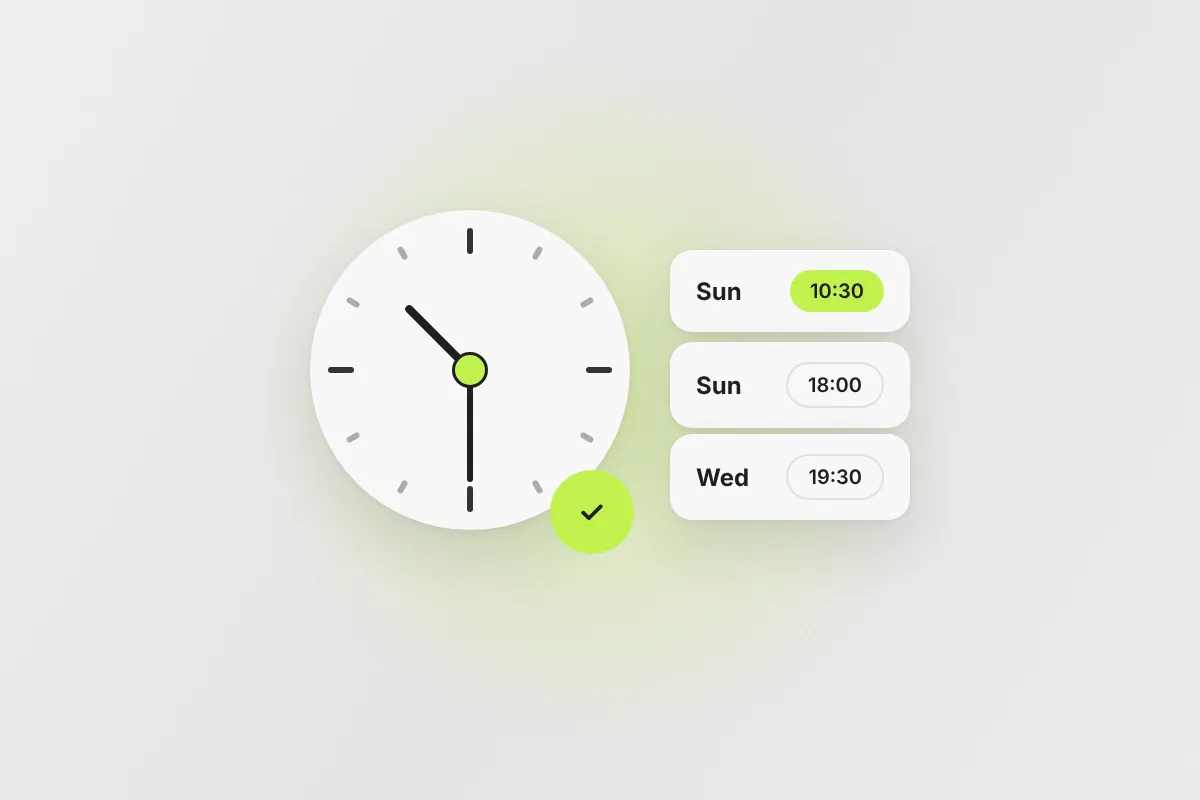
The clocks went back this weekend, and somewhere in Europe a visitor arrived at a locked door. Their phone said the service started at 10:00. The church had moved to 10:30 in September, updated the noticeboard, and forgot Google.
Service times are the single most practical thing a church publishes online. They are also the thing most often wrong. A visitor who comes at the wrong time, or finds three different times in three places, rarely tries again. The church never even knows they came.
On ChurchedIn, 952 of the 2,060 churches listed have service times saved. The other 1,108 leave visitors to guess. Unverified listings with no times and no website are also kept out of Google's index on ChurchedIn, because a page without the basic facts doesn't help anyone.
This guide shows how to write service times that people can trust, put them in the places visitors look, and keep them right through clock changes, summer schedules and Christmas. You don't need any technical skill, and most of it fits in one evening.
Step 1: Write one master list of your times
Start with a single list, in one shared document, that the whole team treats as the truth. Everything online is copied from it.
For each regular gathering, write:
- the day: "Sunday", not "weekly"
- the start time, on the 24-hour clock: "10:30", not "half ten" or "10.30am"
- what it is: "service", "Mass", "prayer meeting", "youth group"
- the language, if you have more than one (see our guide on being found by language)
- anything a visitor needs to know: "with children's programme", "translation available", "in the side hall"
For example:
- Sunday 10:30 – Service in English, children's programme for ages 3–11
- Sunday 18:00 – Evening service in French
- Wednesday 19:30 – Prayer and Bible study (online and in the hall)
Why the 24-hour clock
Across most of Europe people read "19:30" without thinking, while "7:30" can mean morning or evening. Search engines, maps and calendar apps also read 24-hour times most reliably. If your audience is mainly British, "7.30pm" is fine on your own website, but keep the 24-hour form everywhere a machine reads it.
Times that are not every week
Many churches have gatherings like "first Sunday of the month" or "every other Friday". Say exactly that, and don't put them in your regular hours on Google, because Google can only show weekly hours. Write them in your description or post them as one-off updates instead:
First Sunday of the month: 12:00 shared lunch after the service.
End times and arrival
You don't have to publish an end time, but it helps parents and people using public transport. "10:30–12:00" is clearer than "10:30". If people should come early (for example to collect a translation headset or check in children), say so: "Doors open 10:15."
Step 2: Put the times on Google Business Profile
Google is where most people will check your time, often from a map, a few minutes before they leave. (New to it? Our Google Business Profile guide explains how to claim your church.)
Regular hours
Go to Google Search or Maps → your church → Edit profile → Hours. Google shows these as "opening hours", so think of them as "when people can come in for a gathering":
- Enter the start and end of your main gathering(s) on each day.
- For two services on the same day, add two time slots for that day (for example 09:30–11:00 and 11:30–13:00).
- Mark days with no gathering as Closed. It sounds cold, but it stops people turning up to an empty building.
If your building is open more widely (for example a church that is open for prayer every day from 9:00 to 17:00), use those hours instead and put the service times in the description.
Special hours for holidays
This is the step most churches miss. Under Edit profile → Hours → Special hours, add the dates that differ from usual: Christmas Eve, Christmas Day, Easter, summer weeks with one combined service, a Sunday when you meet elsewhere. Google then shows the right times on those dates and keeps your usual hours for the rest of the year.
Do your Christmas special hours now, in October or early November. People start searching for Christmas services in late November, and Google can take a few days to show changes.
Announce changes
Use Add update for anything temporary: "From 1 November our service starts at 10:30." An update shows on your profile and tells regular visitors and newcomers at the same time.
Apple Business Connect
iPhone users see Apple Maps, which has its own hours. At businessconnect.apple.com, go to Locations → your church → Hours and enter the same times. Apple also has special hours for holidays: add the same dates as on Google.
Step 3: Make the times impossible to miss on your website
A visitor should find your service time on your home page in a few seconds, without opening a menu.
Where to put them
- On the home page, in the top part, next to your address: "Sundays 10:30 · Rue Example 12, Ixelles".
- On a "Visit us" or "New here?" page, with the full list from Step 1 and what to expect.
- In the footer of every page, in one short line.
Don't put service times only in a picture (a flyer or a photo of a noticeboard). Search engines and screen readers can't read text in an image, and it is hard to read on a phone.
Clock changes and time zones
When a visitor checks your website from another country, times are read as local time. Your website doesn't need to do anything clever: just write the local time. But if you livestream, write the time zone for online viewers: "Livestream Sundays 10:30 Brussels time (CET)."
Add the times to your structured data
Structured data is a small block of code that tells search engines the facts of a page. In schema.org, a church is the type Church, and its regular hours can be described with openingHoursSpecification:
<script type="application/ld+json">
{
  "@context": "https://schema.org",
  "@type": "Church",
  "name": "Your Church Name",
  "url": "https://www.example-church.be",
  "address": {
    "@type": "PostalAddress",
    "streetAddress": "Rue Example 12",
    "postalCode": "1050",
    "addressLocality": "Ixelles",
    "addressCountry": "BE"
  },
  "openingHoursSpecification": [
    {
      "@type": "OpeningHoursSpecification",
      "dayOfWeek": "https://schema.org/Sunday",
      "opens": "10:30",
      "closes": "12:00"
    },
    {
      "@type": "OpeningHoursSpecification",
      "dayOfWeek": "https://schema.org/Wednesday",
      "opens": "19:30",
      "closes": "21:00"
    }
  ]
}
</script>
Paste it into the head of your home page (WordPress: a plugin such as WPCode; Squarespace: page header code injection; Wix: Settings → Custom code). Test it with Google's Rich Results Test or validator.schema.org. Google may still take your hours from your Business Profile rather than your website, which is one more reason to keep them identical.
Step 4: Put the same times on ChurchedIn
Directories are where many newcomers compare churches before they choose one, so your times there must match Google and your website exactly.
- Find your church on ChurchedIn and click Manage this page (free). If your login email uses your church website's domain, you are approved automatically; otherwise our team checks with your church.
- In My church → Church page, fill in Service times: one gathering per line, written like your master list, for example "Sunday 10:30 (English)".
- Add the languages your services are held in, so people searching by language find you.
- Save. Your church page shows the new times right away.
Not listed yet? Add your church with its service times. It takes a few minutes.
Listing the same name, address, phone number and times on Google, Apple Maps, your website and directories like ChurchedIn makes all of them more believable to search engines. Mismatches do the opposite.
European points to watch
- Day names in several languages. If your website is in more than one language, translate the day names too: "dimanche", "zondag", "Sonntag". Keep the time itself in the same 24-hour form in every language.
- Decimal points and "h". French readers are used to "10 h 30", Dutch readers to "10.30 uur", English readers to "10:30". On your own website, use the local habit. In Google, Apple and structured data you enter the time in a fixed form, so this doesn't matter there.
- Summer schedules. Many European churches combine services in July and August. Add those weeks as special hours on Google and Apple, and put a line on your website ("Summer: one service at 10:00 from 6 July to 31 August"), then remove it in September.
- Registrations and GDPR. For Christmas or a special service with limited places, you might ask people to register. Remember that a list of people attending a church service can reveal their religion, which the GDPR treats as especially sensitive. Ask only for what you need (a name and an email), say why, and delete the list after the event. ChurchedIn's free event registration deletes registrations 30 days after the event.
The 30-minute volunteer action plan
- 10 minutes: write or update your master list of service times (Step 1) and check it with your pastor.
- 5 minutes: check your regular hours on Google Business Profile and fix anything that differs.
- 5 minutes: add special hours for Christmas Eve and Christmas Day on Google.
- 5 minutes: copy the same hours and special hours to Apple Business Connect.
- 5 minutes: update the service times on ChurchedIn and on your website's home page.
Put a reminder in the church calendar for the next clock change and for early June, to check everything again before the summer.
Common mistakes to avoid
Old times somewhere online. The website was updated, but an old Facebook "About" section, a directory or a printed-then-photographed flyer still shows the previous time. Fix: once a year, search your church's name and check every result on the first page.
"Service at 10" with no day. Some churches write only a time, assuming "Sunday" is obvious. For someone who has never been to church, it isn't. Fix: always write the day.
Times only on Facebook. Many people don't use Facebook, and posts quickly scroll out of sight. Fix: keep your times on your website, Google and ChurchedIn, and use Facebook to remind people.
Forgetting the exceptions. Christmas, Easter and the summer bring the most visitors of the year, and that is exactly when times change. Fix: add special hours on Google and Apple at least four weeks ahead.
Frequently asked questions
How do I add two service times on the same day in Google Business Profile?
Open Edit profile → Hours, choose the day and add a second time slot (for example 09:30–11:00 and 11:30–13:00). Google shows both slots on your profile.
How do I show Christmas service times on Google?
Use Special hours in your Business Profile and add each date that differs, such as 24 and 25 December, with its times. Add them at least a few weeks ahead, because people start searching for Christmas services in late November.
Should church service times be written in 24-hour format?
For most of Europe, yes: "19:30" can't be misread, and maps, search engines and calendars read it reliably. On an English-language website for a British audience, "7.30pm" is fine, as long as the day and time are clear.
Why does Google show the wrong service time for my church?
Usually because your Business Profile was never updated, someone suggested an edit, or Google took the time from another website. Check Edit profile → Hours, correct it, and make sure your website and directories such as ChurchedIn show the same time.
Do service times help my church appear in search results?
They help people trust what they find, and complete, consistent information across Google, your website and directories is one of the signals local search uses. On ChurchedIn, a listing with service times is also more complete and more useful for visitors comparing churches.
Next steps
A correct service time is a small act of hospitality: it tells a stranger that they are expected and when to come. Write your master list, update Google and Apple, add your Christmas times now, and then update your church on ChurchedIn, or add your church if it isn't listed yet. It's free and takes a few minutes, and the next visitor who checks will find the door open.